
Park N Fly is an off-airport parking operator where travelers can prepay to leave their cars in a secure airport location, travel, and return to their car upon arrive. Before enabling Park N Fly:
- Users must already have a form of payment and set to preferred/default in their Nexonia Travel profile.
- The outbound airport must offer Park N Fly for it to be available for selection and purchase. To find out if your desired airport has Park N Fly locations, click here.
This article shows you, a TMC Administrator, how to enable Park N Fly.
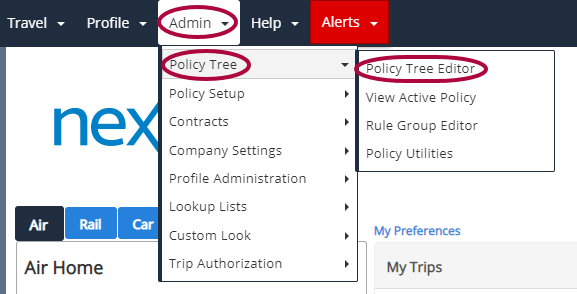
Step 1: On your Nexonia Travel homepage, click the Admin tab. Then, click Policy Tree followed by Policy Tree Editor.
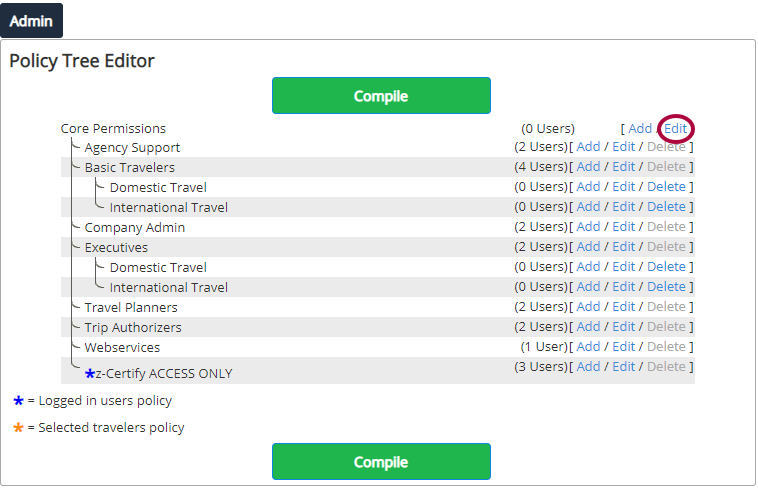
Step 2: Click Edit next to Core Permissions.
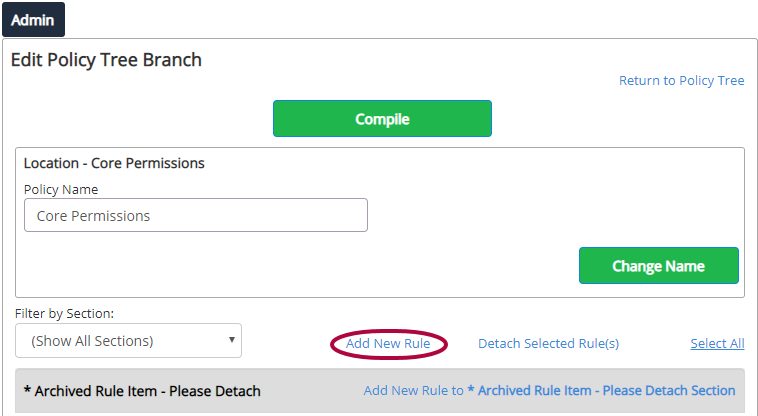
Step 3: Click Add New Rule.
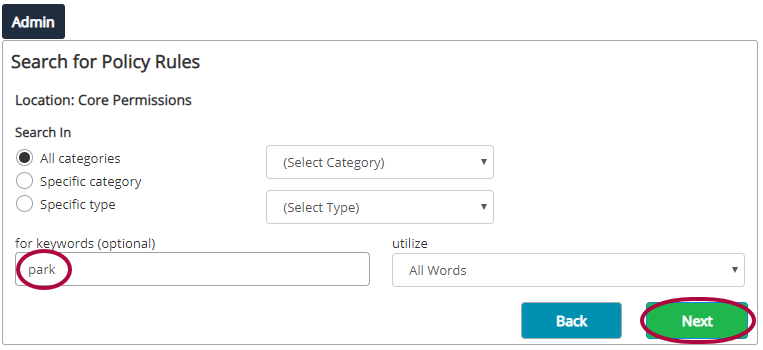
Step 4: Enter "Park" in the search function and click Next.
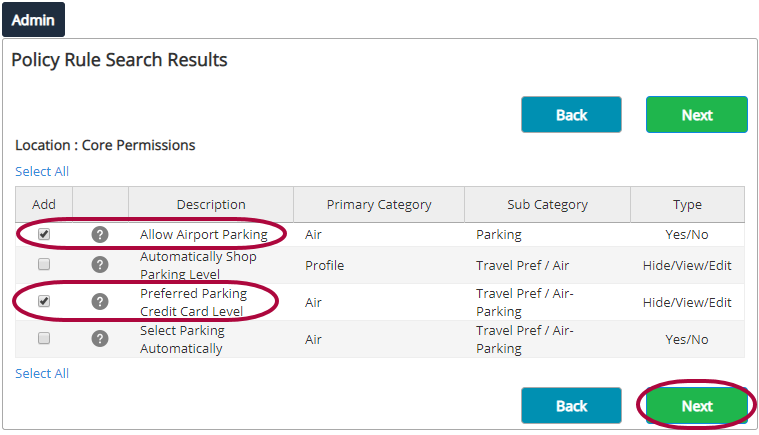
Step 5: Four rules will appear. Click the checkboxes next to Allow Airport Parking and Preferred Parking Credit Card Level. Then, click Next.
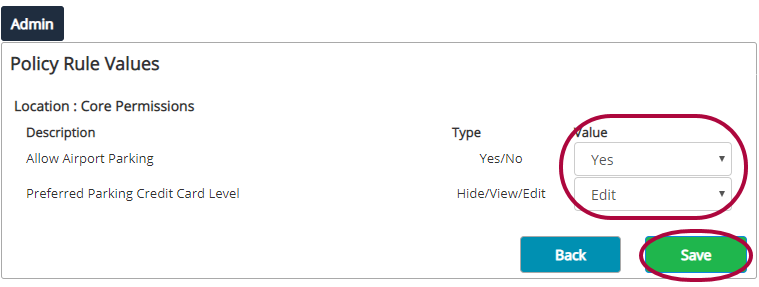
Step 6: In the Value drop-down menu, set Allow Airport Parking to Yes, and Preferred Parking Credit Card Level to Edit. Then, click Save.
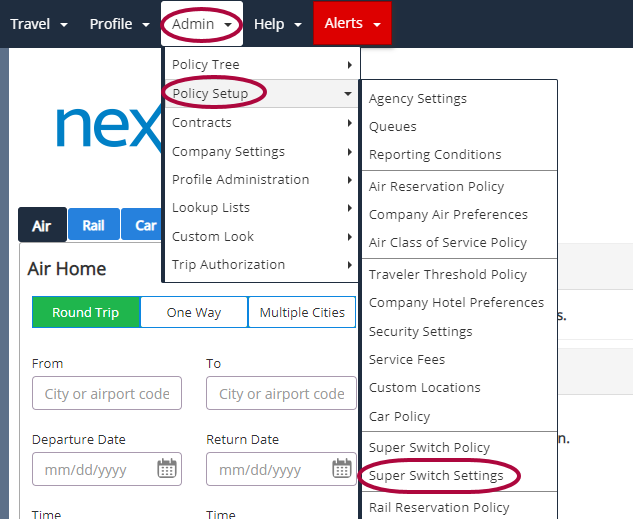
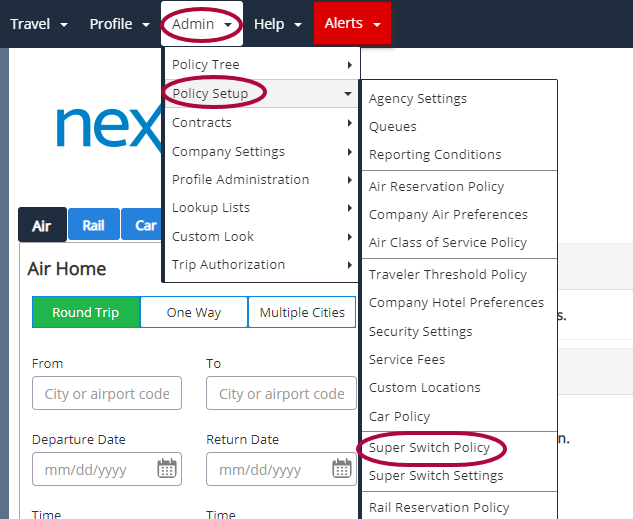
Step 7: Next, click Admin. Then, click Policy Setup followed by SuperSwitch Settings.
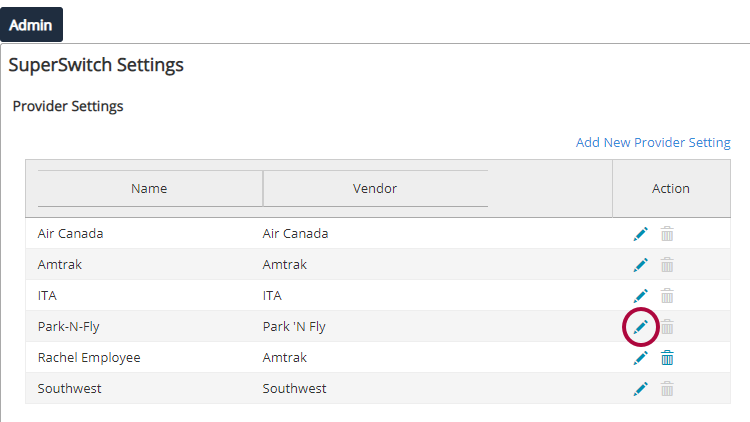
Step 8: Under Provider Settings, click the pencil icon next to Park N Fly to edit.
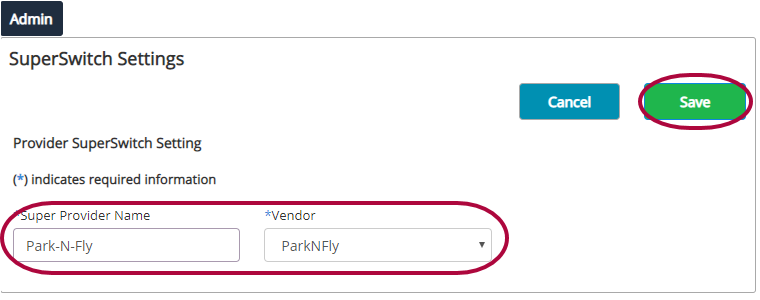
Step 9: Enter Park N Fly in the text box, and select the operator from the drop-down menu. Then, click Save.
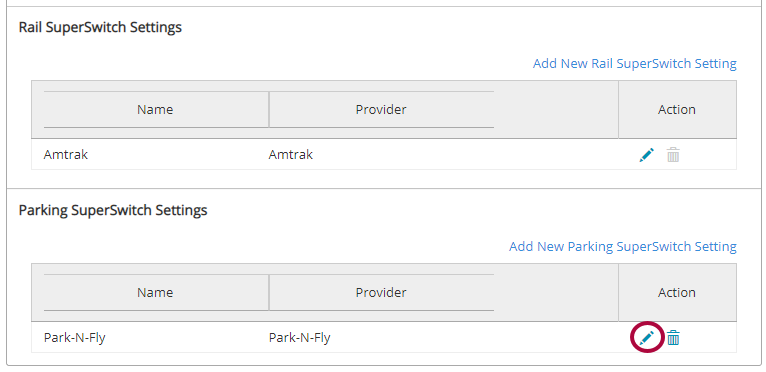
Step 10: Back on the SuperSwitch Settings page, scroll to Parking SuperSwitch Settings and click the pencil icon next to Park N Fly to edit.
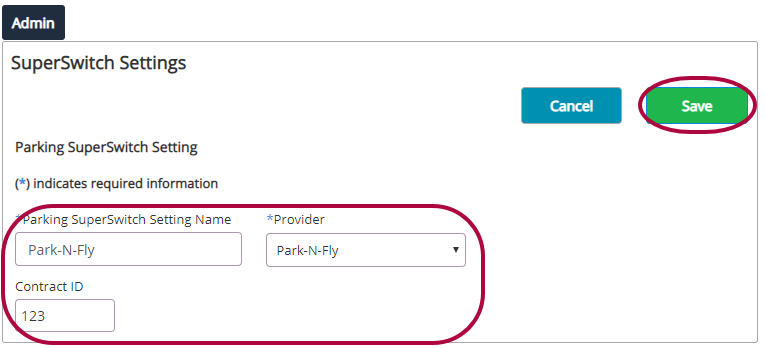
Step 11: In Parking SuperSwitch Setting Name enter Park N Fly and select the Provider from the drop-down menu. Enter a Contract ID or Discount Code in the third box if applicable. Click Save when complete.
Step 12: Next, click Admin. Then, click Policy Setup followed by SuperSwitch Policy.
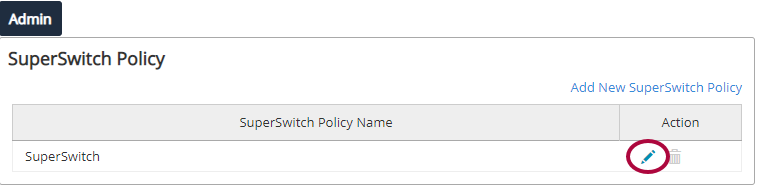
Step 13: Click the pencil icon.
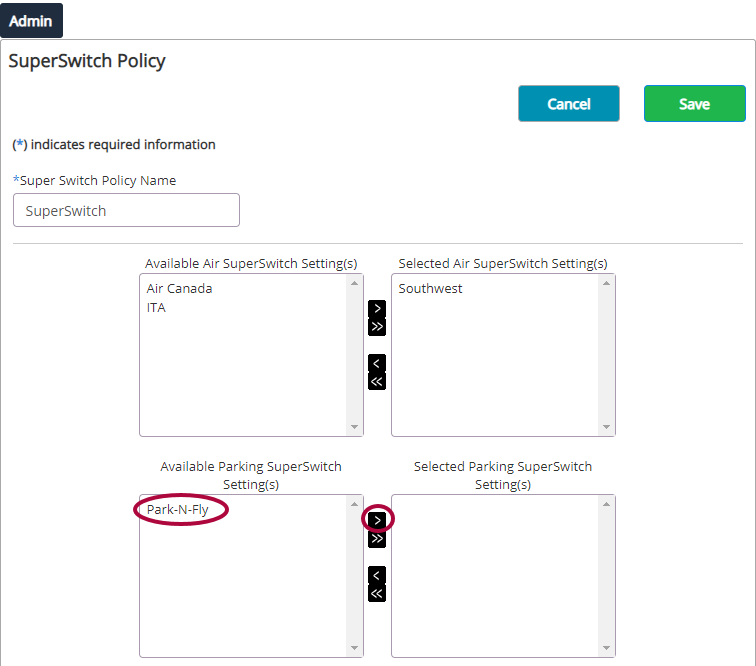
Step 14: Move Park N Fly from the left Available column, to the right Selected column using the arrow.
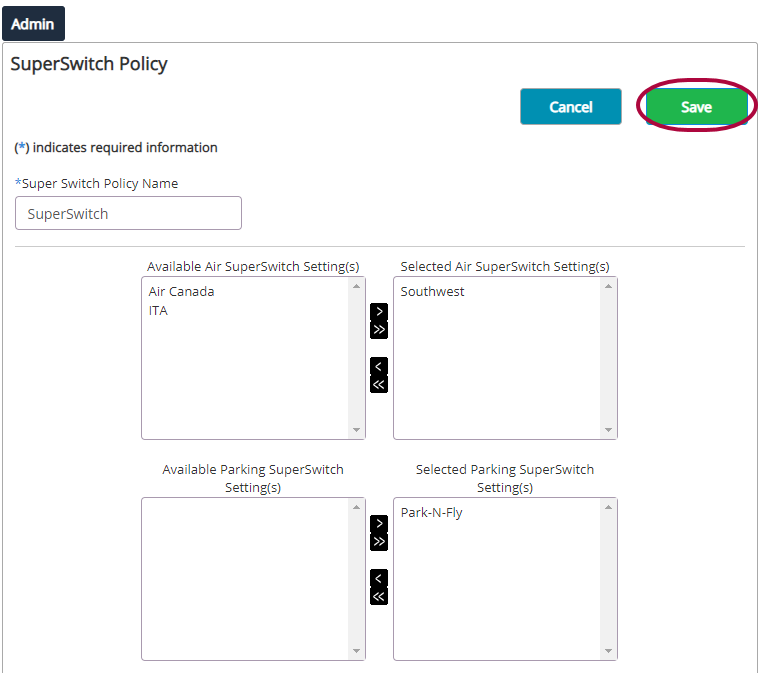
Step 15: Click Save when complete.
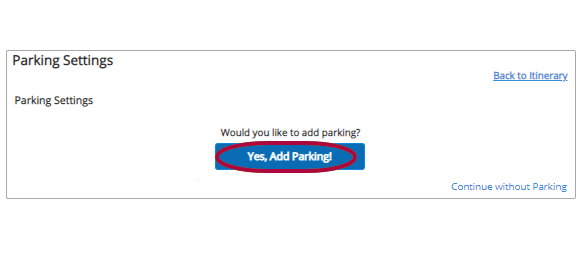
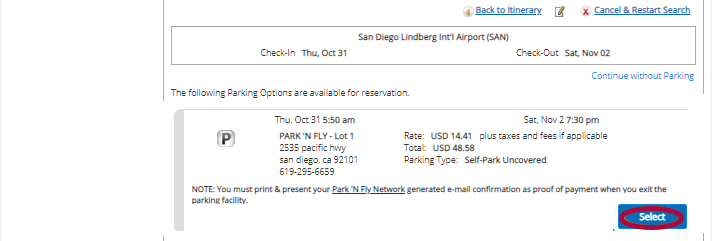
Step 16: Return to the homepage and search for a new travel booking. If parking is available at the outbound airport, you'll be prompted to add or decline parking.
Step 17: When you add parking to your itinerary, a list of parking options will appear for selection. Click Select to add it to your itinerary.
Comments
0 comments
Article is closed for comments.