
The Cards Gateway offers a dedicated interface for administrators to easily manage and securely import transactions and card data from AMEX Small Business card programs.
This document shows you, a Nexonia Administrator, how to set up AMEX Small Business cards using the Cards Gateway.
Card Integration Setup
Once the Cards Gateway permissions have been enabled, a Nexonia Administrator can start integrating AMEX Small Business credit card programs. For information on enabling the Cards Gateway, follow the steps outlined in Enabling the Nexonia Cards Gateway.
To integrate your AMEX Small Business credit card account to the Nexonia Cards Gateway, follow these steps.
Step 1: In the Cards tab, click the button to Add A Card Program.
Step 2: The Connect a Card Program window will appear. Select the American Express card program to integrate with Nexonia.
Step 3: After selecting a Card Program, you will be led to the American Express permissions page. Click Continue to American Express to give Nexonia access to the card programs account information.
Step 4: Enter the primary login information for this account, and click Log In.
Step 5: Once connected, back in Nexonia under the Cards tab, the in-progress credit card program appears on the Cards page.
Please Note: It may take between 24 and 48 hours to complete the card setup between Nexonia and your chosen financial institution.
Step 6: The AMEX card program, number of assigned/ unassigned cards, as well as the list of cards associated with the Emburse Cards account, will be visible once the setup is complete.
Step 7: Make sure to assign any unassigned cards. Cards left unassigned prompt an email notification reminder to be sent to the Administrator.
Credit Card Transactions
Once the AMEX Small Business Credit Card Program integrates with Nexonia, you can use the Cards Gateway to manage the virtual cards and import transactions for expense reports.
On the Cards tab, select a card user with an Active account status.
The Card Details page opens. From here, a Nexonia Administrator can view card information and transactions not yet assigned to a user's expense report, as well as assign cardholders.
An additional way to view unused transactions is by clicking the number in the Unused column of the user’s credit card.
Syncing Transactions
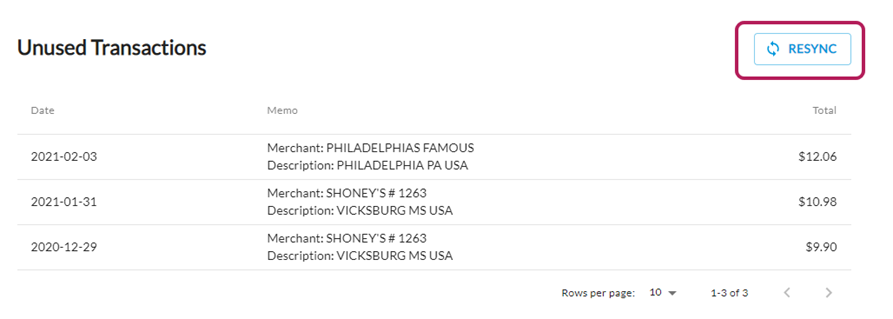
Card transactions should sync automatically for all active cards. However, if a transaction does not appear on the Unused Transactions page, click the Resync button to manually import credit card transactions.
Comments
0 comments
Article is closed for comments.